Posts

Document Number range maintenance (Year End Activity) in SAP S4HANA
Image
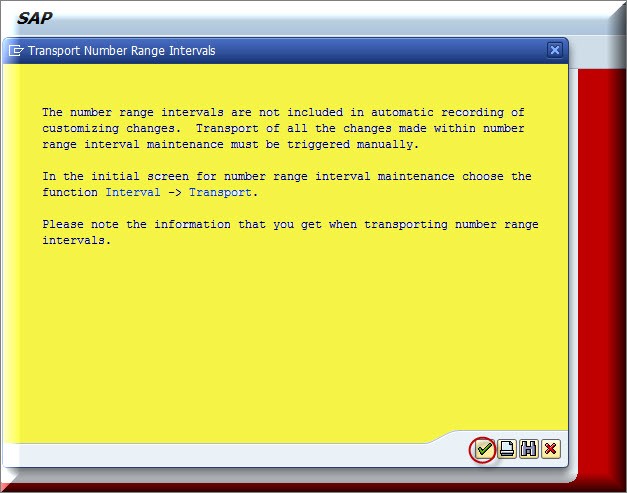
  Objective is to Copy the number range of document types from previous year to the new Fiscal year i.e.2017 Use Transaction Code à OBH2 This activity should be done before 31 st march Click on continue  System will display a message that number ranges interval are added. *********************************************************************************** Please go through this video for more information

Balances Carry Forward – GL in SAP

Image
  Balances Carry Forward – GL in SAP Objective --> To carry over the closing GL balance from Previous fiscal year to next fiscal year.  Transaction code à FAGLGVTR Fill the details as in the screen and execute in test run. And if there is no error tick off the test run and execute. This will carry forward the balances to next fiscal year and can be seen in Tcode : FS10N Go through this video and share your feedback. ***********************************************************************************

Bulk Scrapping of Asset in SAP

Image
  Bulk Scrapping of Asset in SAP Objective : This blog will guide you in scrapping of bulk asset data in SAP. This is yearend / month-end tutorial. Enter T Code à AR01 in SAP command box and Press Enter Copy Asset data, which you want to delete and click on execute Go to Edit à Worklists à Click on create Type work list name then select Retirement without revenue and click OK Click Ok Note Down this work Queue code and Enter T Code à AR31 Enter Worklist and click on execute You can check the status and then after click on Release to Scrap the asset in Mass. Please go through this video and Subscribe our channel. *********************End of Blog***************************

Opening New Fiscal Year and Posting Period in SAP

Image
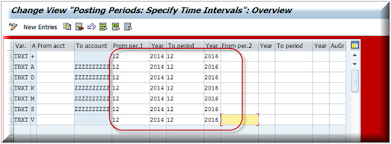
  Opening New Fiscal Year and Posting Period in SAP Open new Period and FY with Tcode: OB52 for Company Code: TRXT, New Fiscal year 2017 as created  Change Posting Periods and Press Save By this way you can change the posting period in SAP. Please go through the below video for better understanding. Thank You ________________________________________________________________________

Bulk Scrapping of Asset in SAP

Image
  Bulk Scrapping of Asset in SAP This blog will guide you to scrap asset data in large quantity. Please go through till last and share your feedback also. Enter T Code à AR01 in SAP command box Copy Asset data, which you want to delete and click on execute Go to Edit à Worklists à Click on create Type work list name then select Retirement without revenue and click OK Click Ok Note Down this work Queue code and Enter T Code à AR31 Enter Worklist and click on execute You can check the status and then after click on Release to Scrap the asset in Mass.   Please watch this video also

How to view Technical Information of Data input field in SAP

Image
  How to view Technical Information of Data input field in SAP Enter Transaction Code à FB03 in SAP command box and press enter. Press Enter Click on any data input tab and Press f1 of your keyboard Click on Technical Information icon Check all the Technical Info related to that particular data input tab. Thanks for reading this blog. Please watch this video also and share your valuable feedback.  

Post Park Customer Invoice in SAP (FBV0)

Image
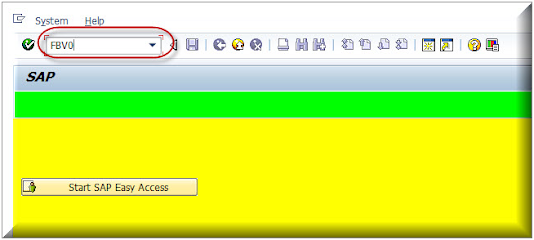
 This tutorial will explains you how to post park customer invoices in SAP Enter T Code à FBV0 in sap command box Press Enter Enter Company Code, Parked document number, Fiscal Year and then  Press enter Check the details and  Click on Simulate Click Post to Post the invoice. Thanks for the reading this tutorial.